
Your complete guide to Saylooni
Learn the keypad, choose a voice, review your number history and solve common sound or language issues.
Choose your keypad style
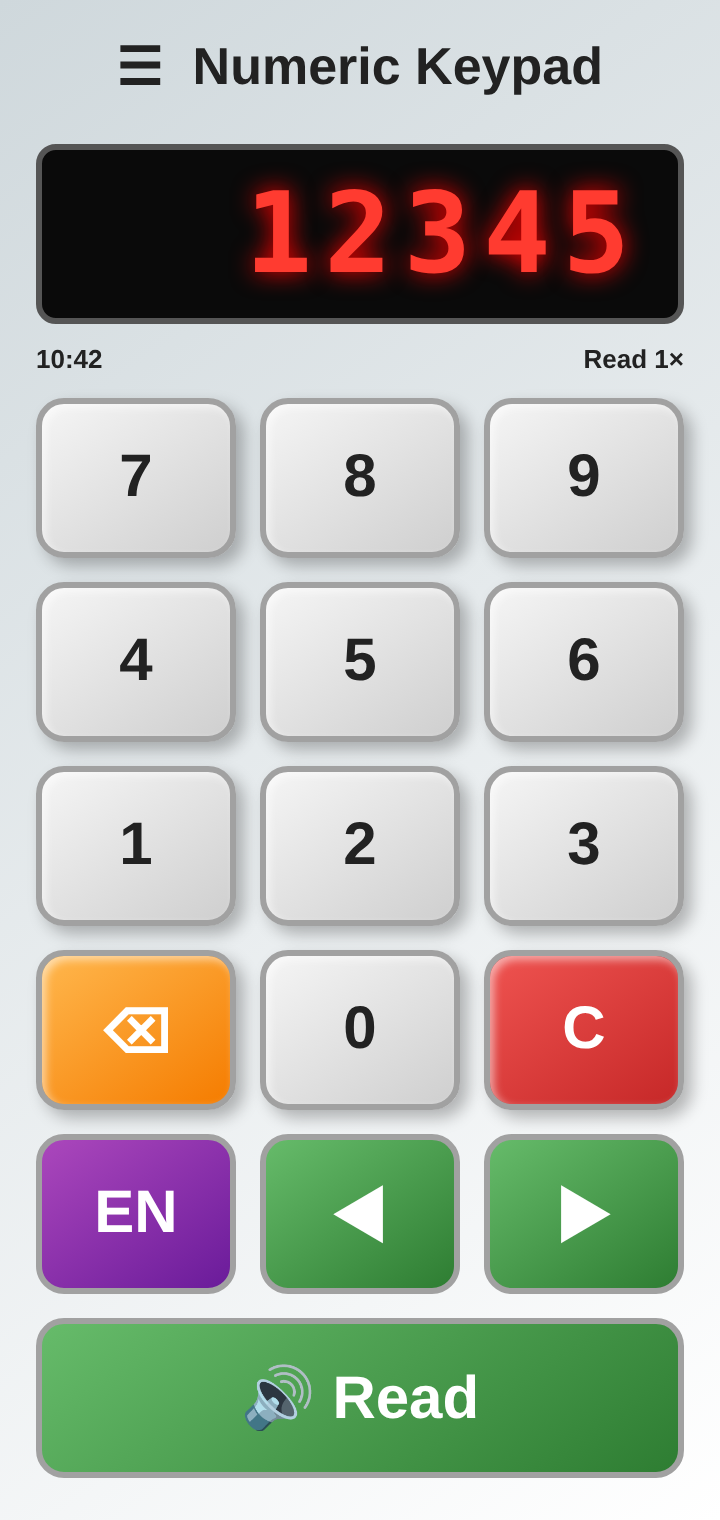
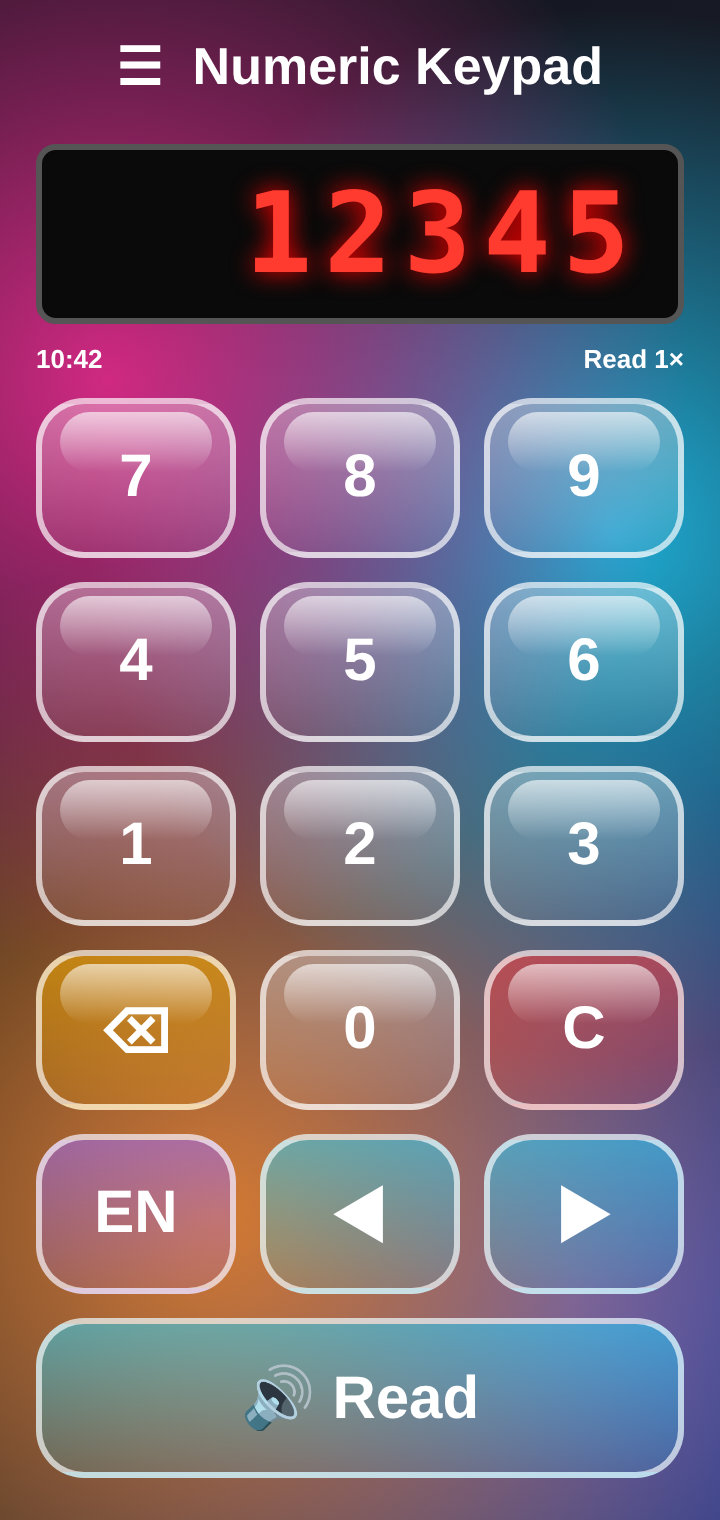
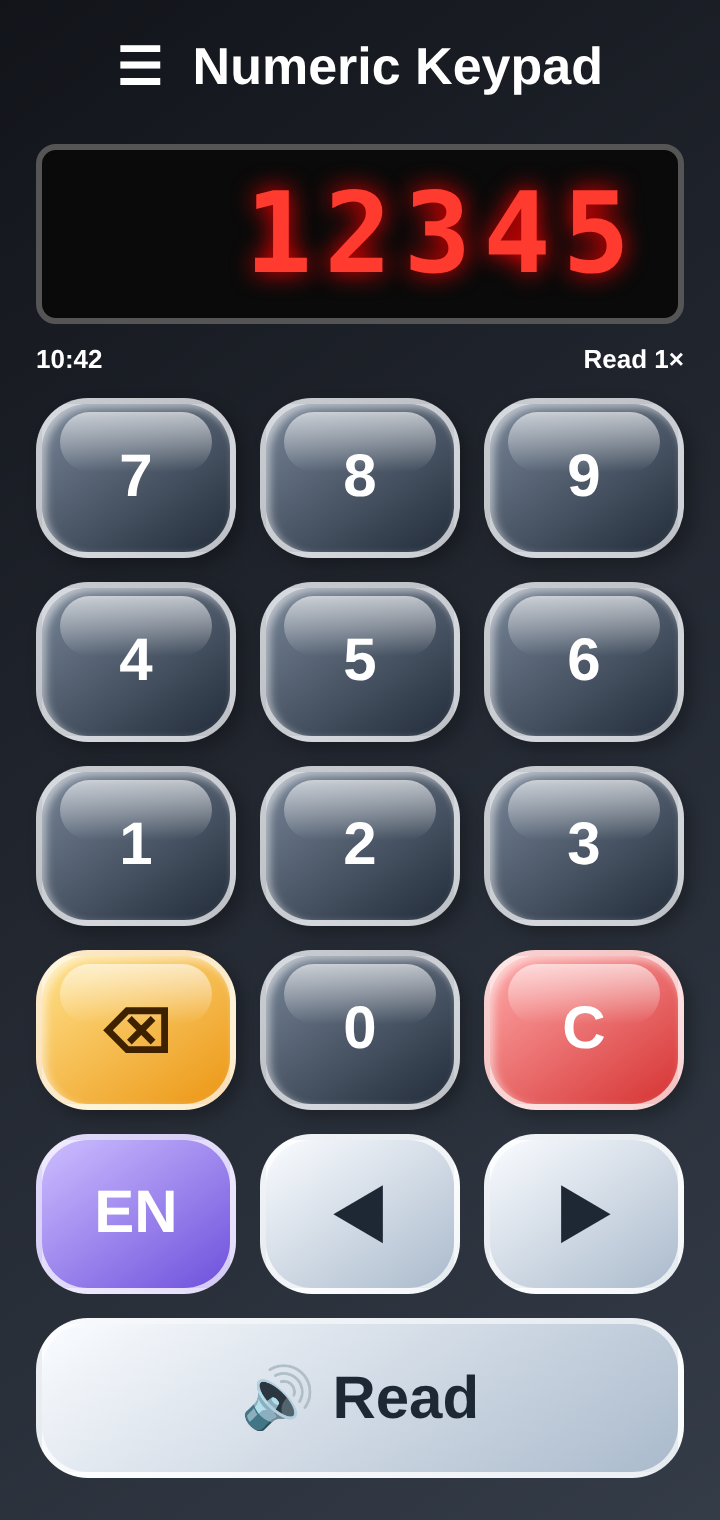
The app offers several key themes. Here are three examples.
Quick start
Use the keypad to enter up to five digits. A leading zero is ignored.
Select one of the languages enabled in App Settings.
Hear the number spoken aloud. The number is saved to history.
Understanding the keys
- Digits: enter a digit. The keypad accepts up to five digits; a leading 0 is ignored.
- Backspace: delete the last digit.
- Clear: clear the entire display.
- Read 🔊: speak the displayed number in the current language and at the selected speed. The number is added to history.
- Previous / Next: browse up to 50 previously read numbers. The time and read count appear below the display. A key is dimmed when no number exists in that direction.
- Language: switch between languages selected in settings. Labels under the display change language too. The key is dimmed when only one language is enabled.
Number history
The last 50 numbers are stored on your phone and remain there after you close the app.
Reading the same number again increases its counter and updates its timestamp.
Open the full history list
Open the menu → Number History to see saved numbers, newest first. Tap any number to show it on the keypad. This is useful if you closed the app and need to check which numbers you already announced. Use the trash icon to clear the list.
App Settings
Open the menu → App Settings to customize reading and appearance.
Reading speed
Move the slider to change how quickly the number is spoken. Tap Test to hear “12345” at the selected speed before saving.
Languages
Tick the languages you want available from the language key. At least one language must remain selected. The free version includes English, French and Spanish. Other languages appear dimmed with an UPGRADE label and unlock with Pro (menu → Upgrade to Pro). Pro also removes ads.
Other voices
Other voices already installed on your phone may appear below the main languages. Select one to use it; labels under the display remain in English for these voices.
Install a missing voice
Each language needs a compatible voice installed on your phone. If a voice is missing, the app shows a step-by-step guide and a Download button that opens your phone’s voice settings. On iPhone/iPad, open Settings → Accessibility → Spoken Content → Voices. Settings cannot be saved with a missing voice: that language is unticked and you are asked to press Save again. Use Add more languages to open voice settings at any time.
Key theme
Choose Classic (default), Glass, Rainbow, Candy, Smoked Glass or Jungle. Press Save to apply the theme.
Save, Cancel and Default
- Save stores your settings.
- Cancel closes settings without applying changes.
- Default restores English, French and Spanish, a reading speed of 0.70× and Classic keys. Press Save to keep the defaults.
Sound and volume
Saylooni follows your phone’s media volume. Use your phone’s volume buttons to make speech louder or quieter.
When your phone is on silent or vibrate (including the side switch on iPhone/iPad), the app may play no sound, but the number is still saved in history.
External keyboard shortcuts
- Number keys: type digits.
- Backspace: delete the last digit.
- Enter: read the number aloud.
- C: clear the display.
- Left / Right arrows: browse number history.
Troubleshooting
No sound
Check the media volume, make sure the phone is not on silent, and confirm that a voice for the selected language is installed.
The Language key is dimmed
Only one language is selected. Open App Settings and tick additional languages.
“No voice installed” message
Android: open Text-to-speech settings or tap Install voice in the message. iPhone/iPad: open Settings → Accessibility → Spoken Content → Voices, then install a voice for that language.
Settings will not save
Check whether a selected language has a missing voice. Install the voice, return to App Settings, select the language again if needed, and press Save.
Need more help?
Visit the story page for a quick overview, or contact us if you have a question.